Theme for Ironloom POS
STOSPN theme
A neon look in a dark and a light mode: near-black violet with cyan, blue and violet lights, and its own heading letters. It also changes the welcome and login page.
Price
$30, paid once
See the theme in action
Real screens of the program. Drag the line to compare the standard look with the theme: the same screen, the same data.
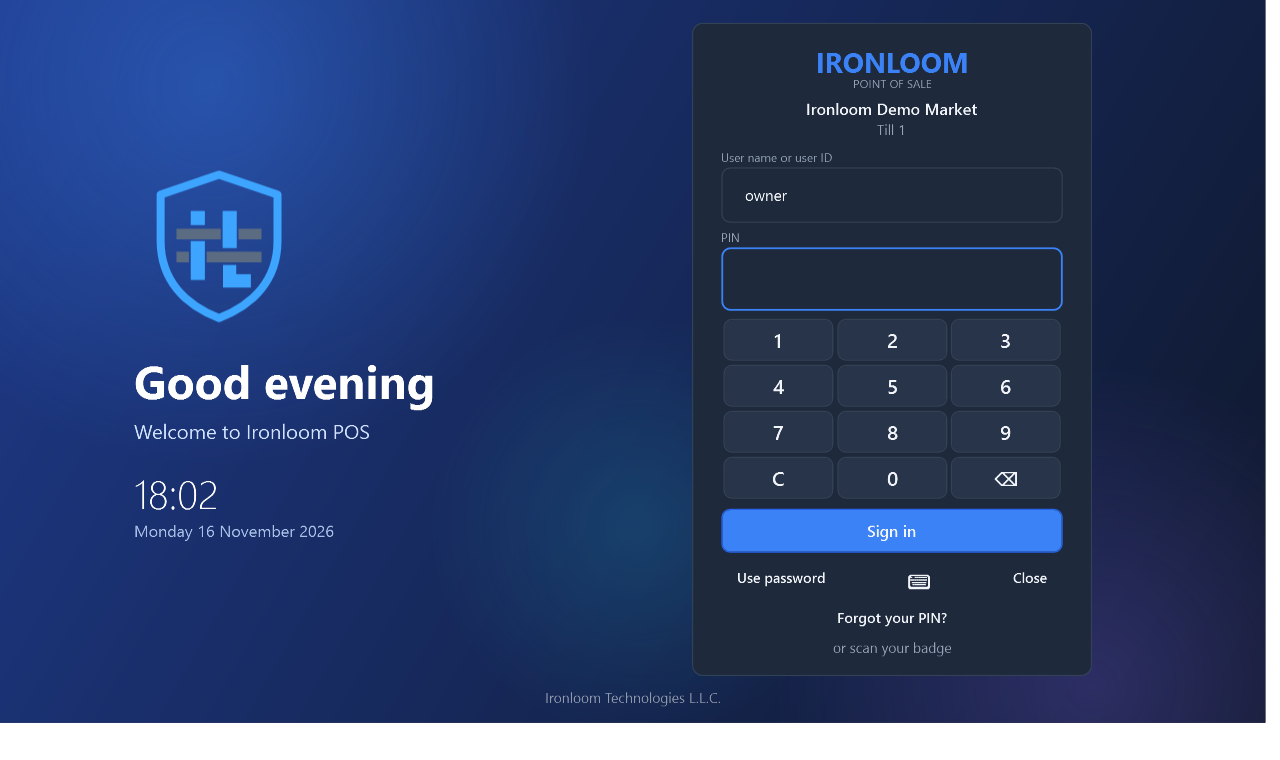
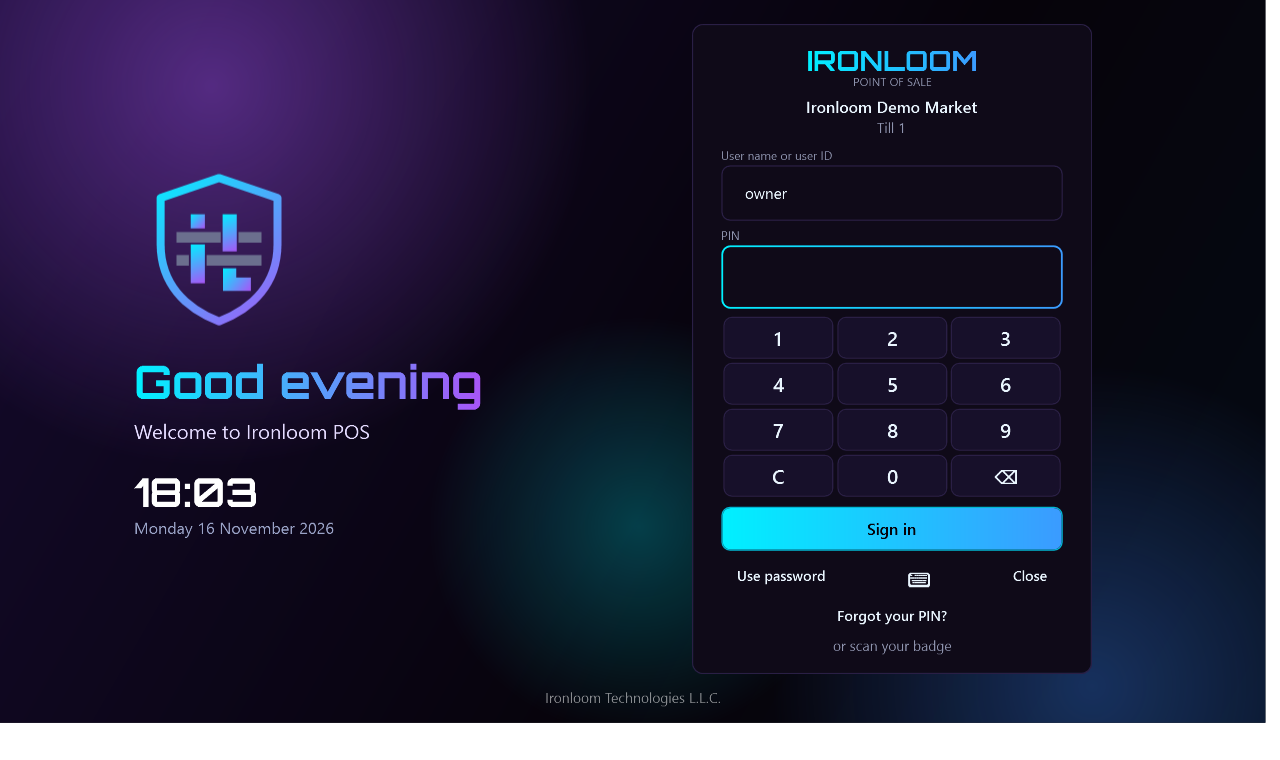 Standard lookSTOSPN theme
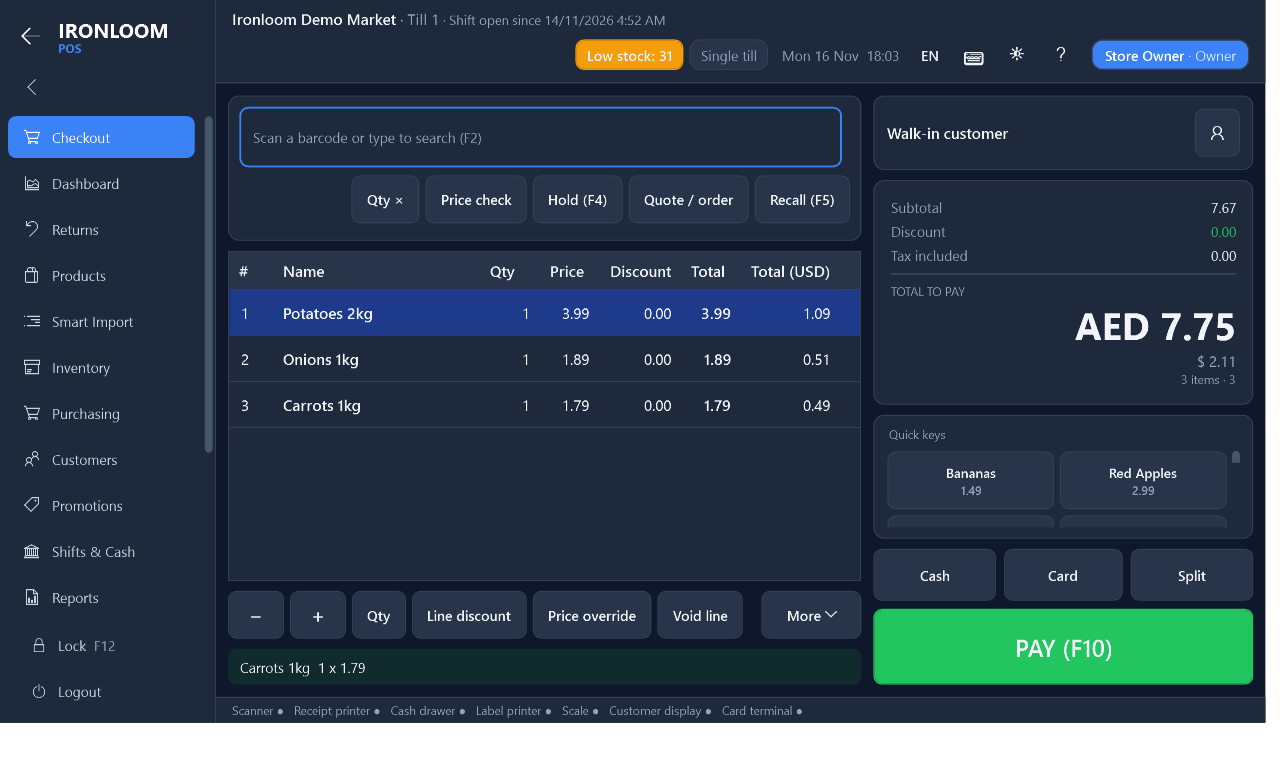
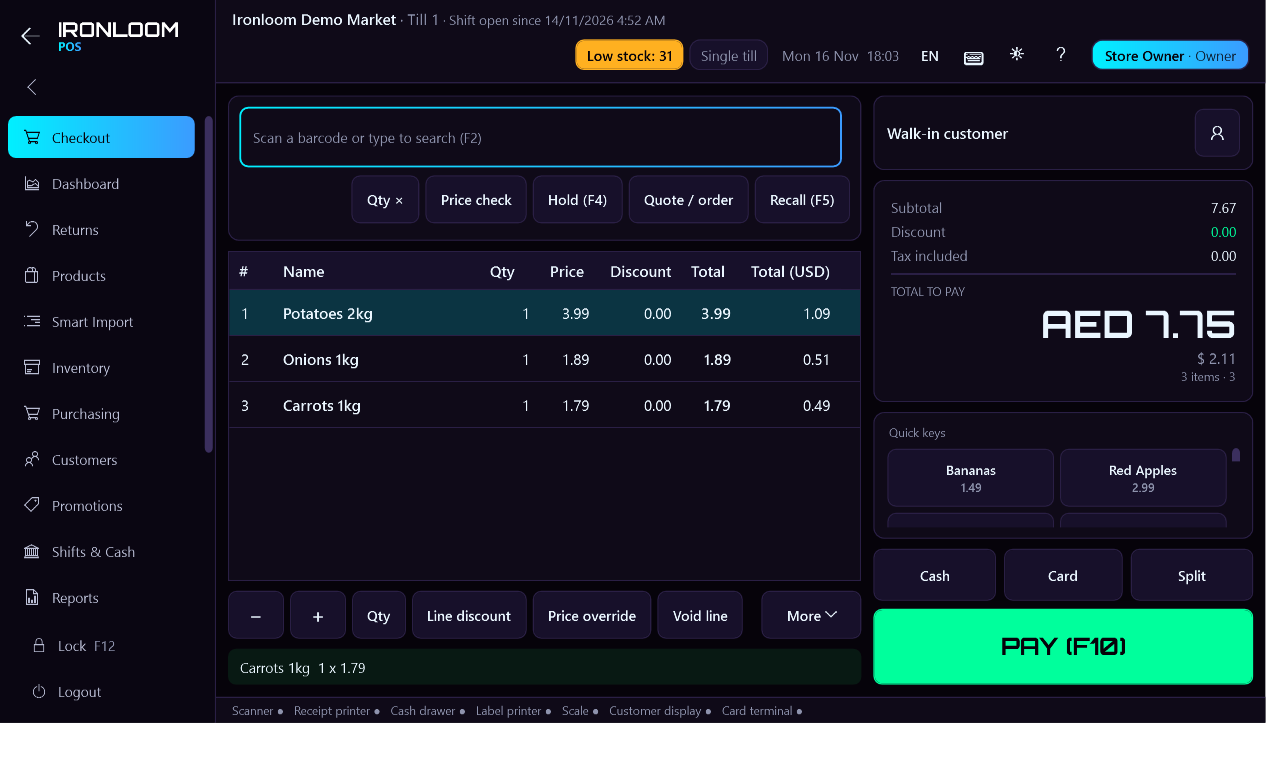 Standard lookSTOSPN theme
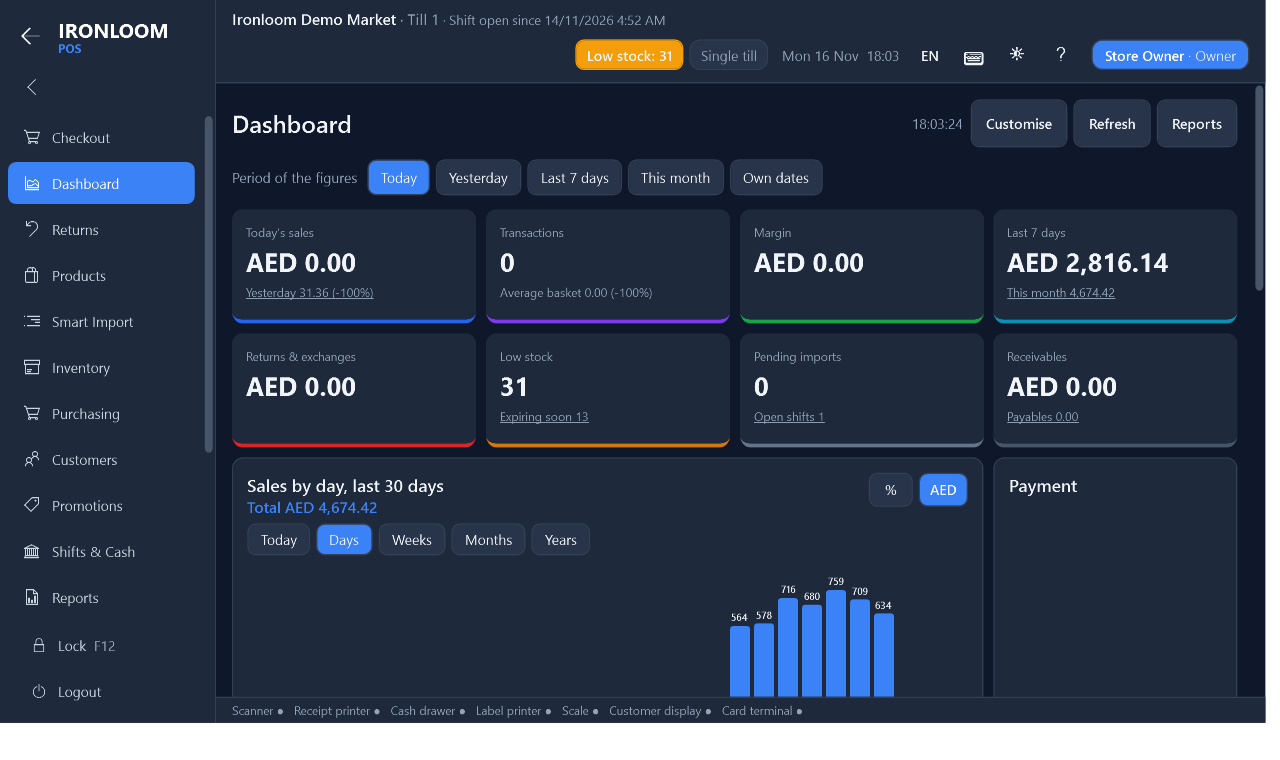
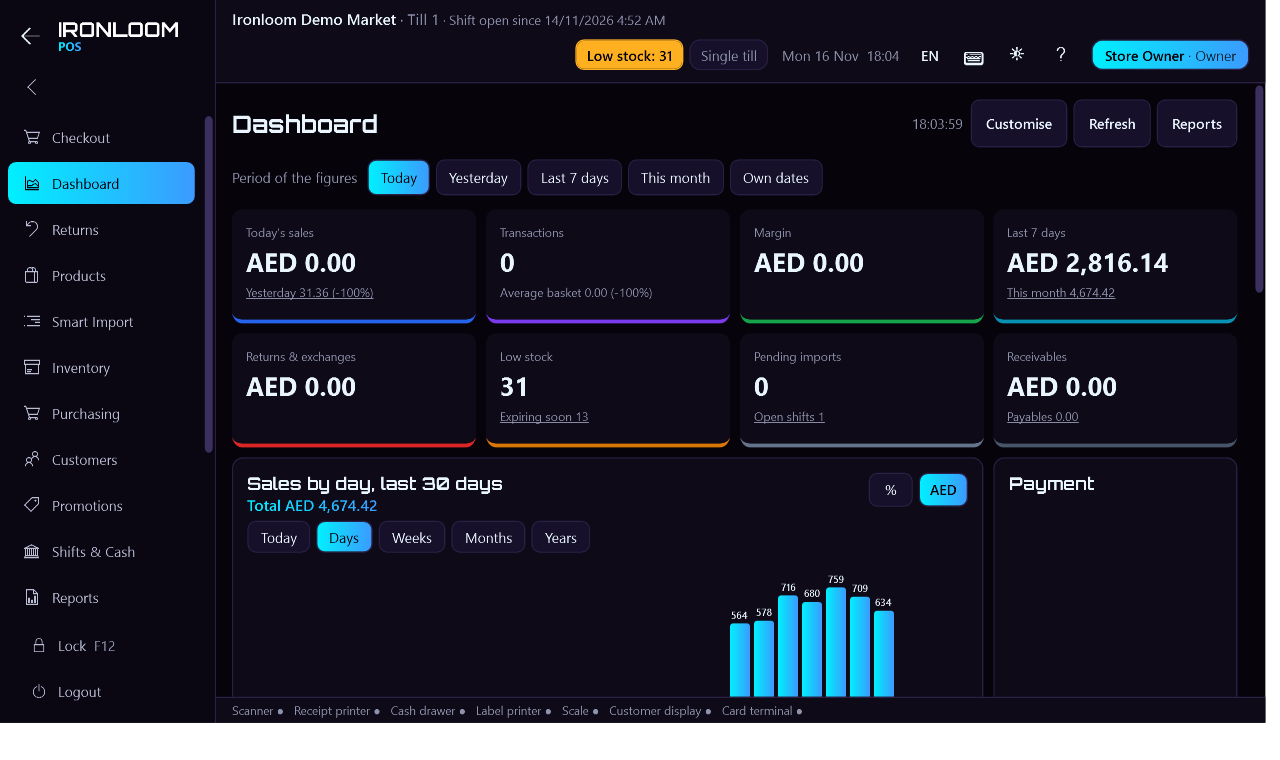 Standard lookSTOSPN theme
What it changes
The STOSPN theme gives Ironloom POS a neon look. Every screen, window and button takes the theme's colours; the texts, the layout and the way you work stay exactly the same.
- Two modes, dark and light: the sun button at the top of the program switches between them
- A new welcome and login page: coloured lights, the Ironloom shield in the theme's colours and the greeting in a colour gradient
- Its own heading letters (Orbitron) for titles, the clock, the total to pay and the Pay button
- Glow only where it helps: the box you are typing in, the chosen menu entry and the main buttons, so the till stays calm to read all day
The colours of the theme
The same colours are used on every screen of the program.
Dark mode
- Background: near-black violet
#06030A - Panels and cards
#0F0A18 - Text
#EAF6FF - Cyan: main buttons, chosen menu entry, the box in use
#00F0FF - Blue: second colour of the button gradient
#3B82F6 - Violet: lights and accents
#A855F7 - Green: Pay and success
#00FF9C - Amber: warnings
#FFB020 - Red: void and errors
#FF4D6D
Light mode
- Background: pale lavender
#F3F0FA - Panels and cards
#FFFFFF - Text
#150B26 - Blue: main buttons and chosen menu entry (start of the gradient)
#2563EB - Violet: end of the button gradient
#7C3AED - Cyan: background lights only (too pale to read on white)
#00DCEB - Green: Pay and success
#00A66A - Amber: warnings
#C97A00 - Red: void and errors
#E11D48
How to get this theme
- Open Ironloom POS and go to Plugins in the menu.
- Press "Load themes".
- Press "Buy" on its card: this site opens with the item for your store's licence. After paying, press "Check my purchases" in the program. (While an item is being tested at $0 the button reads "Get it" and nothing is paid.)
- Press "Use this theme". "Back to the standard look" returns to the normal look whenever you want.
Good to know
- Each plugin and theme has its own price and is paid once.
- It is added to your store's Ironloom POS licence and stays as long as that licence is valid; renewing the licence keeps it.
- It works without internet like the licence itself.
- A trial copy cannot add plugins: activate a licence first.
Try it in your store for 14 days
Free, on a master PC and one till. No card needed. Your data stays when you buy a licence.